
How To Add New Users To Marketing Cloud Account Engagement

Jump to Section
Salesforce Users and MCAE Users
How to add new users to MCAE
1. Create a new Salesforce User with MCAE permission sets
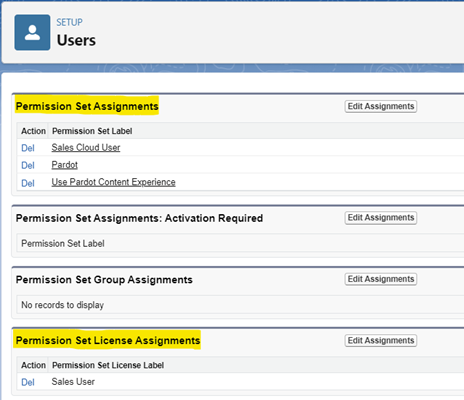
First, new users will need to be a Salesforce user. Learn how to create a new Salesforce user in this Salesforce help article.
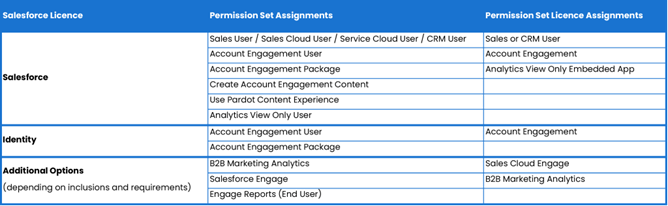
Allocate the appropriate MCAE permsission sets. The table below lists some common permissions to help determine which ones to add, however updates and org variations may mean these permissions are different for your org. Please reach out to us if you require assistance.
2. Add new users to MCAE
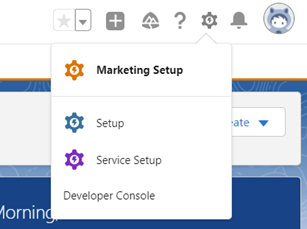
Once your new users are Salesforce users, it’s time to add them to MCAE. ‘User sync’ is the term that means that MCAE users are managed in Salesforce. To manage MCAE users in Salesfore, head to Marketing Setup by clicking the clog in the top right corner.
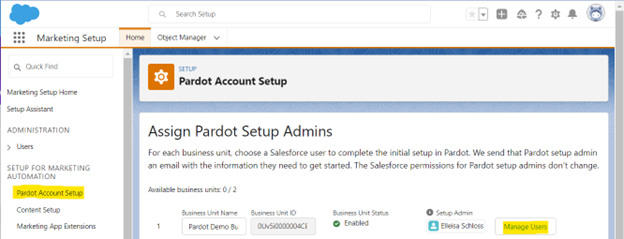
Select ‘Pardot Account Setup’ from the options on the left. Select the ‘Manage Users’ button next to the relevant Business Unit.
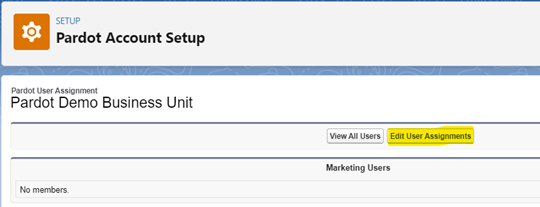
Select ‘Edit User Assignments’
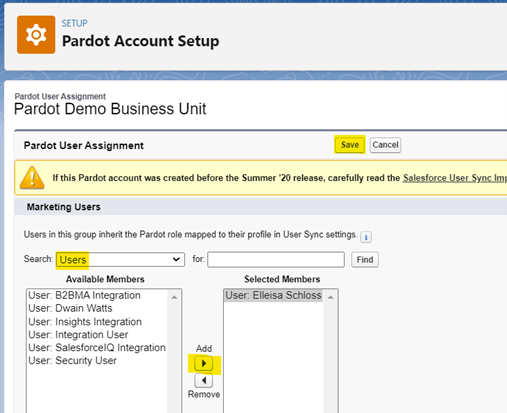
Add your new users as either Marketing Users or Sales Users by selecting the users’ name in the Available Members column, and selecting the ‘Add’ arrow to move them into the Selected Members column. Select ‘Save’.
Marketing Users vs Sales Users in MCAE
You may have noticed a Marketing Users and Sales Users section in that last step. MCAE is primarily a marketing tool, but has function for the sales team too. Some reasons you would want to add a Sales User:
- To use Salesforce Engage.
- To send emails on behalf of the recipient’s Assigned User. This is particularly helpful if you want to send to a list of recipients with different owners, or if you want to use Sender merge fields.
- For email replies to go to the recipients Assigned User.
- Automate notification to the Assigned User.
- Automate Salesforce tasks for the Prospect’s Assigned User.
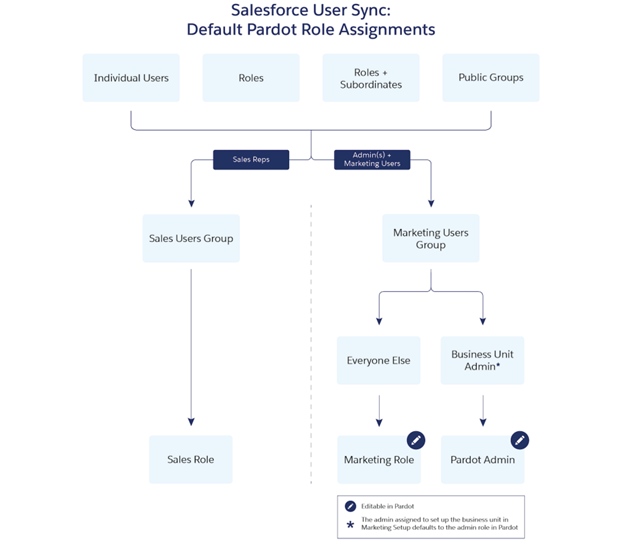
Choosing to add users to the Marketing Users or Sales Users sections will determine if they have a Marketing or Sales role in MCAE, see below graphic. MCAE comes with four default roles, which determine the amount of access and permissions the user has. Read more about MCAE roles here.
Other stuff to know
User settings in MCAE
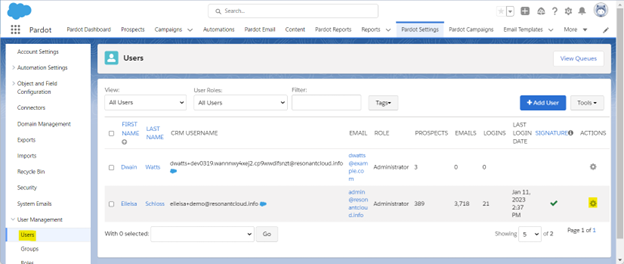
There are still user settings that live in MCAE. Navigate to Pardot Settings > User Management > Users. Here you can update user information, email signatures, and notification and security settings. This is also where you can change an individual’s role from Administrator, Marketing, Sales Manager or Sales (default roles).
User Sync settings in MCAE
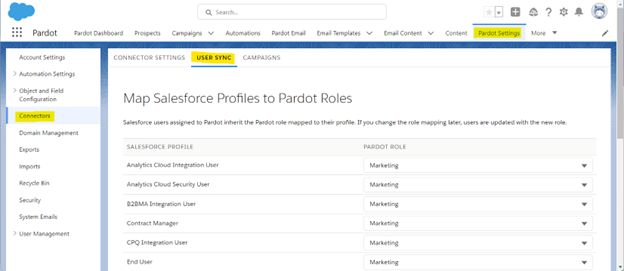
If you want to make high level changes to how Salesforce Profiles map to MCAE roles, visit the User Sync settings. Navigate to Pardot Settings > Connectors, select the cog next to your Salesforce connector and select ‘Edit Settings’, and select the ‘User Sync’ tab.
Need a hand?
Our team of experts are ready to help you with all your Salesforce and MCAE needs. We can help you supercharge your lead generation efforts with Digital Marketing Strategies, MCAE forms, integration of your third-party forms, and more! Send us a message by filling out the form below.