
- Automation Rules are retroactive, criteria-based rules that find matching prospects and apply actions to them – use case: For continually running rules, such as scoring and grading adjustments, to apply tags based on information for quick reporting, or marking prospects who have not engaged in a while as cold leads.
- Completion Actions are a great way to automate certain actions from a marketing asset. For example, you can use a completion action to add prospects to a list when they complete a form. Completion actions are available on forms, form handlers, files, custom redirects, emails, and page actions.
- Dynamic Lists (part of segmentation lists) are a rule-based dynamic list that automatically adds prospects when they match the criteria and remove them when they don’t. You cannot manually add prospects to a dynamic list.
- Page Actions are completion actions that are triggered by a prospect’s page views. You can apply page actions to any page that contains your MCAE tracking code. Think about notifying the sales team if a prospect views your pricing page or locations.
- Segmentation Rules – you can use segmentation rules to create a list of prospects and apply a segmentation action based on specific criteria. Unlike automation rules, segmentation rules don’t run continuously. Segmentation rules run once and match only the prospects that meet the rule’s criteria when the rule runs. Due to this, this function is somewhat limited in actions compared to other automation functions.
Setting up automation rules in MCAE:
This allows the user to pick which brands or communication they want to be subscribed to and which ones they want to opt-out from, while also allowing them to opt-out of all email communications. This is a user-friendly way in which the user can have a say on what they’re subscribed to.
Now that you understand what an EPC does, let’s explore the benefits.
The opportunities of an email preference centre
MCAE automation rules are the most adaptable type of automation, providing extensive coverage and a diverse array of actions. They are rules that match prospects and apply actions to them.
Automation rules consist of two components: rules and actions.
Rules: The criteria you set to determine which prospects should be processed by the automation rule. These can be based on data (e.g. country) or activities (e.g. submitting a form).
There are two match types when defining automation rule criteria (also applies to dynamic lists):
- Match All: The prospect must meet all criteria to be processed. It works like an “AND” (e.g., industry is retail AND country is Australia).
- Match Any: The prospect needs to meet just one criteria to be processed. It works like an “OR” (e.g., industry is retail OR country is Australia).
In the rules section, to add individual criteria click “+ add new rule” and to add sets of criteria, click “+add new rule group”
Actions: The tasks you want MCAE to perform on the prospects identified by the rules.
You can assign actions to the identified rules, such as; adding prospects who meet the all/any criteria to a list, assigning them to a user, adjusting their score, applying a tag, changing a field value, and more.
Key to remember that automation rules are continuous and retroactive. This means that once active, automation rules continuously evaluate prospect criteria and match prospects, even if they meet the criteria after the rule is activated. Automation rules however also have the option of making them non-repeatable if needed.
Using MCAE automation rules to grade prospects:
Automation rules are an essential tool in MCAE, particularly for grading prospects. Grading reflects your level of interest in a prospect and is based on specific criteria. A high grade, such as A+, indicates that the prospect aligns closely with your ideal customer profile.
Automation rules evaluate prospects against grading criteria and adjust their grade accordingly. For example, if a prospect meets the defined standards for engagement, industry, or location, their grade is automatically updated to reflect their suitability.
The below table helps explain grading options and how these can affect a prospect grade:

Source: Salesforce
Important to note that an automation rule will need to be created for each profile criterion. For context take a look at the below scenario:
We are building an automation rule to look at the below:
- The field you are grading: job title
- The value you are looking for: finance manager, CEO, CMO
How to set this up:
In MCAE lightning app, navigate to account engagement automations tab and click on automation rules
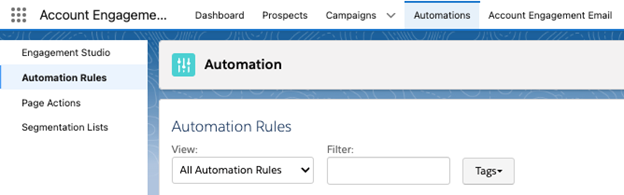
Click add automation :

Create a rule that includes the field value that you have decided would cause the criterion to match. For example, you can use industry – If the prospect default field (job title) contains: finance manager; CEO; CMO etc. Key to note that the ‘contain’ option would only be used if the data you are after is not from a set picklist. Moreover, using a semicolon (;) between values means ‘or’ which is beneficial instead of having individual rules with a match any (or), you can separate them with the semicolon
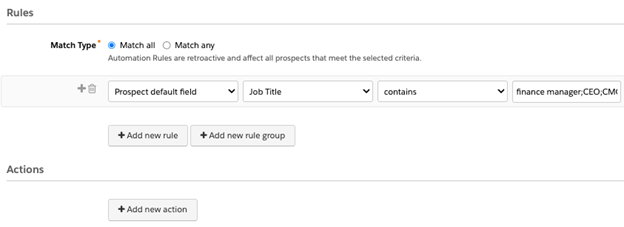

Once this rule matches someone with an industry of retail, real estate or finance, they will get a grade boost by the number you specified in your profile criterion for the job title to be worth (e.g. ⅓, ⅔, 3/3)
Key to note not to use a single automation rule to apply a new profile and match criteria, it is recommended to use two automation rules as per the below:
Automation Rule 1:
- Criteria: prospect default field (job title) contains: finance manager
- Action: change prospect profile to manager
Automation Rule 2:
- Criteria (match all) prospect default field (department) is finance AND prospect profile is manager
- Action: change profile criteria (finance decision maker) to matches
Source: Salesforce
The use of automation rules can also be beneficial to assist with administrative tasks and allow your staff to focus on more important tasks.
Some examples are:
- If you have a job title field value labelled as finance and you want to update it to finance manager – an automation rule can do this automatically
- If you want to tag prospects as “opted out” as soon as they opt out from marketing communications, automation rules can do this. If you want to clear the tag when that same prospect opts back in, an automation rule is perfect for this too
Automation rules vs Salesforce flows:
There is often confusion about when to use automation rules and when Salesforce flow is the better option.
Automation rules and Salesforce flows have some overlapping features. Prospect fields can be updated using flows, especially for complex criteria that MCAE automation may struggle to handle. The choice depends on factors such as flow availability within your organisation – reserving flows for more advanced processes might make MCAE automation the better option. While flows reduce strain on MCAE by offloading automation, they are more complex to master.
It is important to consider the following differences when selecting the most suitable tool for your use case.
| Capability (data logic availability to each automation solution) | Automation rule | Salesforce flows |
|---|---|---|
| Form/Form Handlers/Landing Pages Completions | Yes | No |
| Prospect Field | Yes | Yes (provided they are in Salesforce) |
| Prospect Custom Redirects | Yes | No |
| Prospect Email Opens | Yes | No |
| Prospect List Membership | Yes | No |
| Prospect Tag | Yes | No |
| Visitor Hostname | Yes | No |
| Prospect Query | Yes | No |
| Send MCAE Email | Yes | No |
| Allow deleted Lead or contact to be recreated in Salesforce | Yes | No |
| Scheduled Actions | No | Yes |
| Actions triggered off of field value changes | No | Yes |
| Record Triggered | No | Yes |
Source: Salesforce
Key to note that Salesforce flows can only be used for records that exist in Salesforce, if you have records in MCAE that do not exist on Salesforce, consider automation rules.
We hope you found this information helpful. If you have any questions on MCAE automation, feel free to contact us by submitting the form below, and one of our certified consultants will contact you.
Need a hand?
Our experts are here to support your Salesforce, marketing, and development needs. From lead generation to Account Engagement strategies, we’ll help you drive growth through targeted digital marketing.
Discover how Marketing Cloud Account Engagement can elevate your business and strengthen customer connections.